





This is a cache of https://www.owenscorning.com/en-us/roofing/blog/how-to-use-roof-visualizer. It is a snapshot of the page as it appeared on 2026-09-17T04:26:45.392+0000.
How to Use Our Roof Design Visualizer Tool | Owens Corning Roofing Skip to Main Content
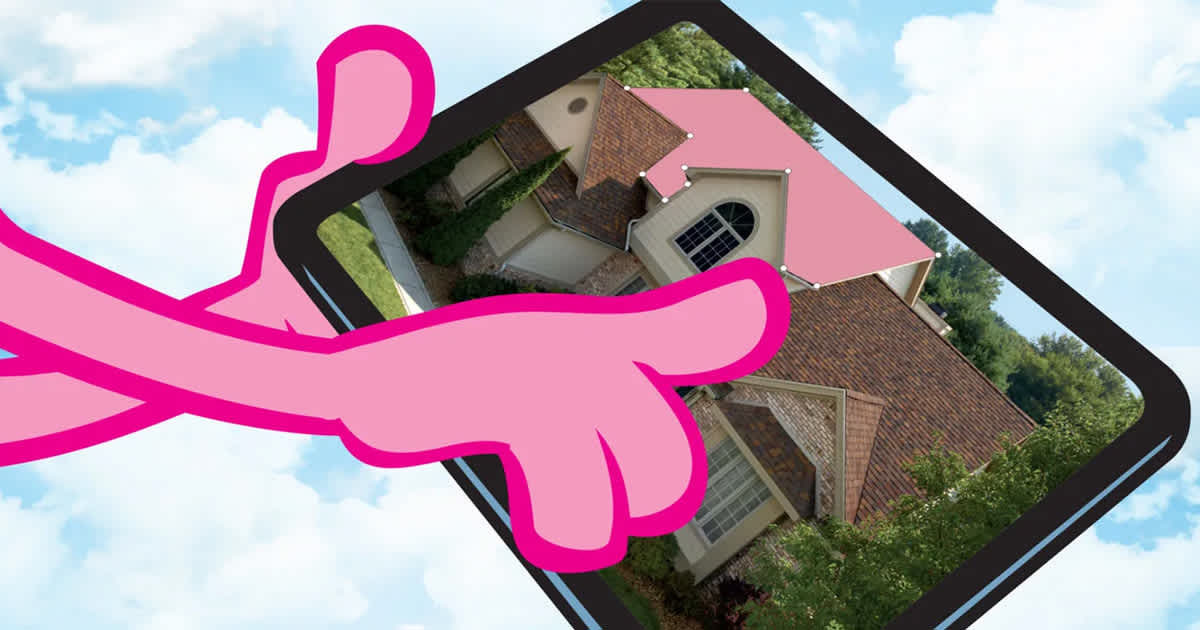
Pink panther using an iPad with roof design software

How to use Design EyeQ® Roof Color Visualizer

Written By Owens Corning RoofingDate Published 2020-12-02

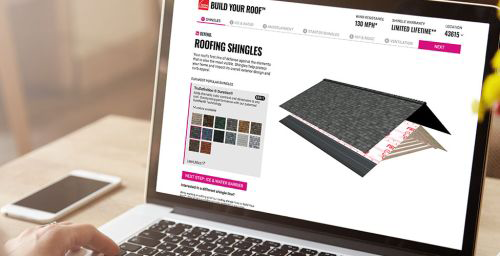
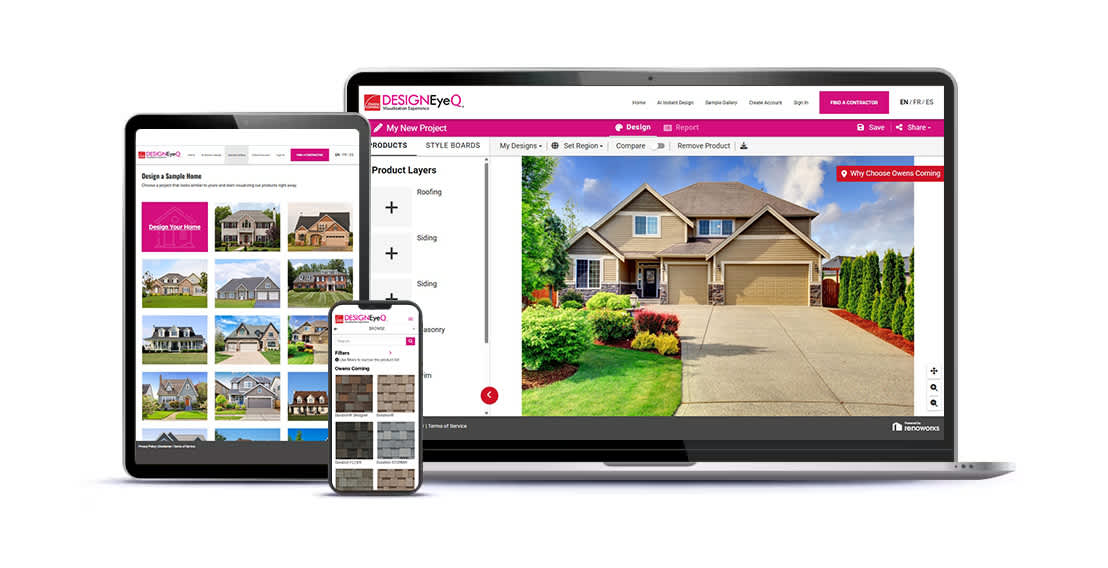
Imagine, explore, design, and experiment to find your dream new roof with help from the Design EyeQ® Roof Visualization ExperienceThe virtual tool will guide you to “try on” roof colors to discover the right style for your roof.

Let’s get started with these four easy-to-follow steps!
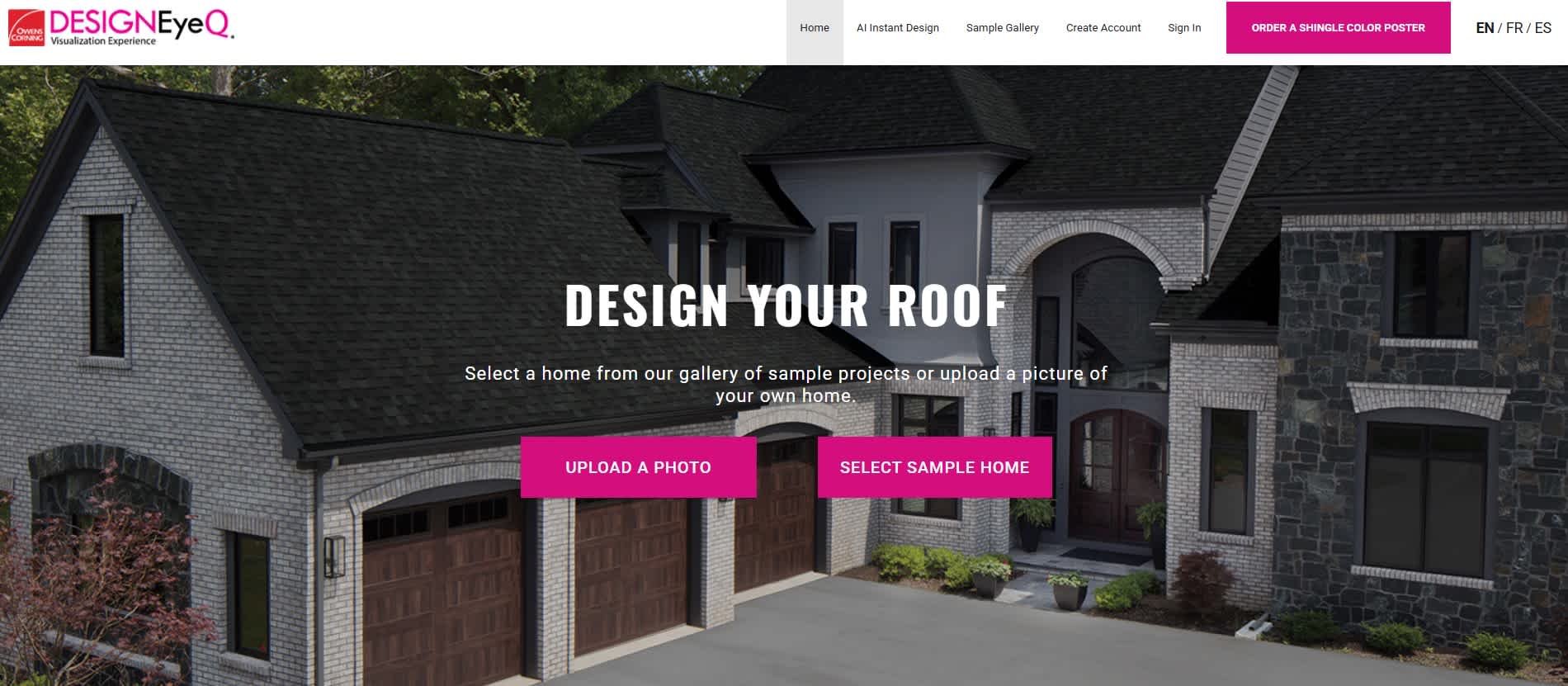
GET STARTED USING Design EyeQ® in 4 easy steps

STEP 1

UPLOAD OR SELECT A PHOTO

Visit the Design EyeQ® Visualization Experience webpage from any device.

The Design EyeQ visualization software provides two options to help you get a picture-perfect sense of how your new roof will look before you make the purchase.

The tool will prompt you to either:

Option 1: Upload an exterior photo of your home

  • Select “UPLOAD A PHOTO”
  • Take a photo or select a photo from your device (mobile, tablet, computer) and then follow the prompts.

Option 2: Select from existing pre-loaded images that closely match the style and color of your house.

Pro Tips:

  • Capture your home straight-on rather than on an angle
  • Choose a time of day with natural light to minimize shadows
  • Include some of the scenery around your house to capture your home in its natural setting


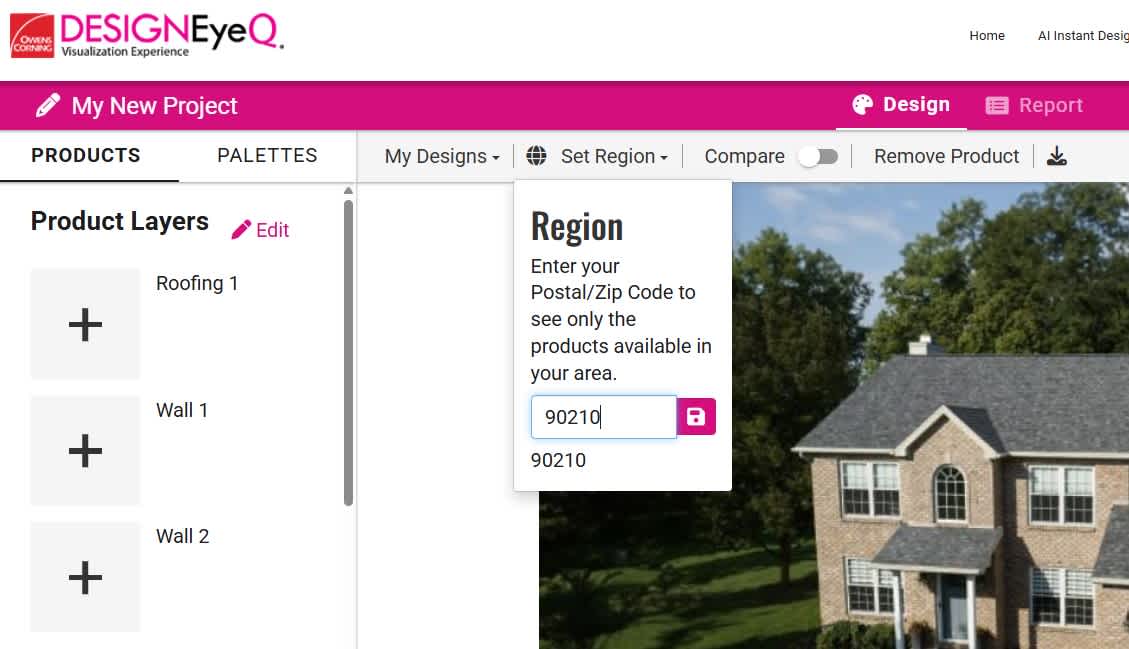
Image illustrating the zip code entry modal from the Design EyeQ application.

STEP 2

SET YOUR LOCATION

Input your zip code or postal code in the "Set Region" tab to filter the products to those available in your region.

Screenshot of the Region selector in Design EyeQ software

STEP 3

DESIGNING & EXPERIMENTING

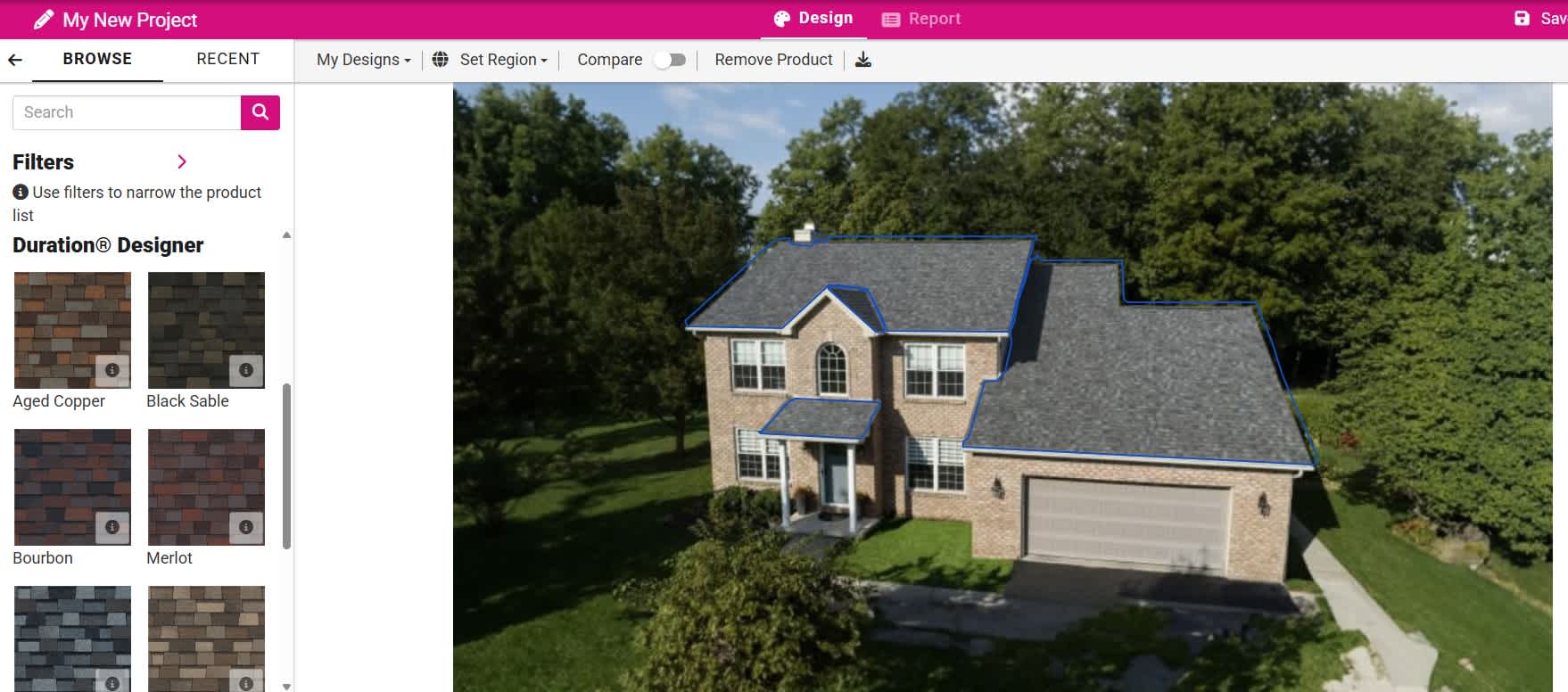
With your uploaded photo in place, Design EyeQ automatically mask the roof and other exterior design elements. The tool will prompt you to start experimenting with different shingle lines and colors, and customize the exterior of your home. 

Screenshot of the main user interface of Design EyeQ, where shingles can be selected and applied to a photograph.
  • Have fun designing by navigating the wide range of color and shingle line options
  • Your selections will automatically get applied to the roof in your photo

STEP 4

SAVE, PRINT OR SHARE

When you are happy with your finished design selections, you can save, print the picture for reference, share it via social media, or download your "Report" to send it to an Owens Corning Roofing Contractor Network member for an estimate.

Create an account or sign in if you already have an account

Click “SAVE”, enter in a name for your project (e.g. Duration® Driftwood) and click “SAVE PROJECT”

To print or to create a PDF, click “PRINT”, click “PRINT THIS PAGE” or “DOWNLOAD PDF”

To share your design (send via email, get link, or post to Facebook, Twitter, or Pinterest), select from the icons to the right of the image.

Owens Corning strives to accurately reproduce photographs of shingles. Due to manufacturing variances, the limitations of the printing process and the variations in natural lighting, actual shingle colors and granule blends may vary from the photo.

The pitch of your roof can also impact how a shingle looks on your home. We suggest that you view a roofing display or several shingles to get a better idea of the actual color.

To accurately judge your shingle and color choice, we recommend that you view it on an actual roof with a pitch similar to your own roof prior to making your final selection. Your roofing contractor may have gotten permission from previous customers to include their homes in a project portfolio that potential customers can go view, so ask your roofer about that.

Color availability subject to change without notice. Ask your professional roofing contractor for samples of colors available in your area.
Share this page on:

Related Articles

Roof Color
Your Home, Your Roof, Your Choice: Pro Roof Design Tips

Find roofing color inspiration and innovative color palettes with design tools and resources from Owens Corning. Use visualization tools and printed samples to finalize your choices.
Read more
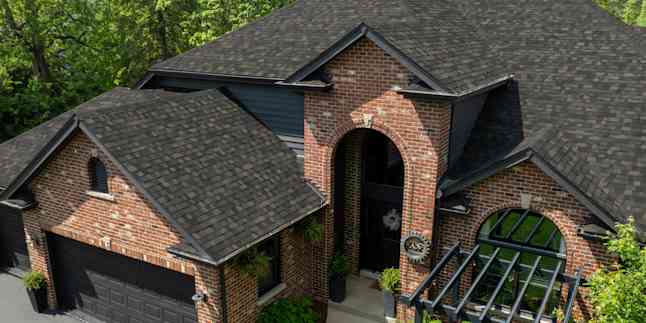
Aerial view of a red brick home with arched entry and a new roof with Owens Corning TruDefinition Duration Black Sable asphalt shingles

Roof Color
Choosing the Right Roof Color for Your Exterior Design Palette

Tips from Designer Chad Esslinger for deciding between a cool or warm color palette for your roof color and home’s exterior design.
Read more
Photo of a variety of color swatches

How-To
How to Pick the Right Roof Shingle Color for Your Home

From creating mood boards to trying on new roof colors with online visualization tools, get the top 10 tips for picking a roof color you love and that complements your home exterior design.
Read more